Small guide Editing Hardware PC For the photoTOGraphe 2021
#Master Geek
Hello everyone!
After my change of PC a few days ago, I wanted to share my experience with you and offer you some tips not only regarding the possible parts to buy but also regarding the possible usage configurations in 2021 to have a Lightroom that works like a charm.
This article, although comprehensive, is more aimed at image professionals than it is at my future married couple.
First of all, a little point about Lightroom in 2021 (these reflections may apply to Mac users as well):
Over time and with various updates, LR has become more robust and more or less optimized (although the trend is still towards improvement).
When we consider how to improve Lightroom's performance, there are now two categories of speed measurements to take into account, which unfortunately do not always go hand in hand with improvements, unless you spend a lot of money and buy the best possible PC components.
These two ways are simple: Active stains and Passive stains.
_Passive tasks, as the name suggests, are all the operations that Lightroom will perform in the background. For example, exporting photos, intentionally previewing them, importing photos, etc. Normally, these tasks wouldn’t prevent you from working at the same time, but most of the time they consume the resources of your PC/Mac and we get used to waiting for them to finish before continuing the work.
So of course if these tasks take time, they impact your editing and your screen time.
Active patches are, conversely, those that we do ourselves; in other words, the slightest movement of the sliders during development, cropping, loading presets, etc. It is also necessary to take into account the generation of previews of our presets in these patches; the more you have them, the more they are preloaded for each photo. All these simple little things, put together with a slow computer and you lose hours of editing time. Obviously, on 8-10 photos, this small latency between each slider movement or when switching from one photo to another is negligible… but on thousands of photos it becomes a problem. Imagine, for example, a 1.5s lag between the passing of two photos; that is almost 1500 seconds lost, or… 25 minutes… The same problem occurs with sliders; some of them, such as Clarity, Texture, Veil, or Upright, are very energy-consuming.
So how do we fix this?
So to keep it simple, here’s an obvious base: SSDs. In 2021, having your catalog on an old hard drive becomes heresy. The speed gain will already be noticeable. And to go even further, there are fast SSDs… and atomic SSDs. These are the NVME M2s that are in 2021 in generation 4. We’re talking about speeds that are about 16 times higher than a standard SSD… I’ll return to how to exploit them later.
Then in 2021, in order not to be stuck with a specific processor model or specific brand, let’s say that Lightroom ADORES something: 6 cores, 12 logical cores! That’s the minimum required for LR to work properly. So you’ll see below that I appreciate AMD Ryzen for that, but to summarize, Lightroom loves cores. «The more you have, the more you have.» Combine that with a decent amount of RAM, a fast SSD, and a graphics card that’s just average-to-high-end, and you’re good to go!
I wouldn't go into the details of the motherboard, but let me say one thing: it must be of high quality, fast, well-equipped in terms of cooling, and above all, it must not get too hot!
Let's go back to SSDs.
For about 6-7 years Lightroom has been happy to have its catalog on a different disk from the system. This relieved the C: disk from work, which was taken over by another disk that we already had, ideally an SSD. Today this is still relevant, BUT we can go further.
No SSD RAID setup for your work drive; numerous tests online show that it does not provide any speed compared to a simple NVMe drive.
Lightroom, however, prefers a 3-disc setup:
_ #1 unit for the system
_#2 one for the workflow (editing files)
_#3 And one for the cache and the catalog (included with preview images created in the same folder)
I personally decided to go with this configuration and I ended up with the #1st and #3rd drives in NVMe Gen 4 directly on the motherboard and a fast SSD for the workflow. The workflow (i.e. just the files in editing) didn’t need to be the fastest drive; the most important interaction would always be between the system drive and the cache drive containing the catalog. As the write speeds became largely sufficient for LR, I only needed to access the file but «work» on the other two drives.
My configuration now is therefore as follows:
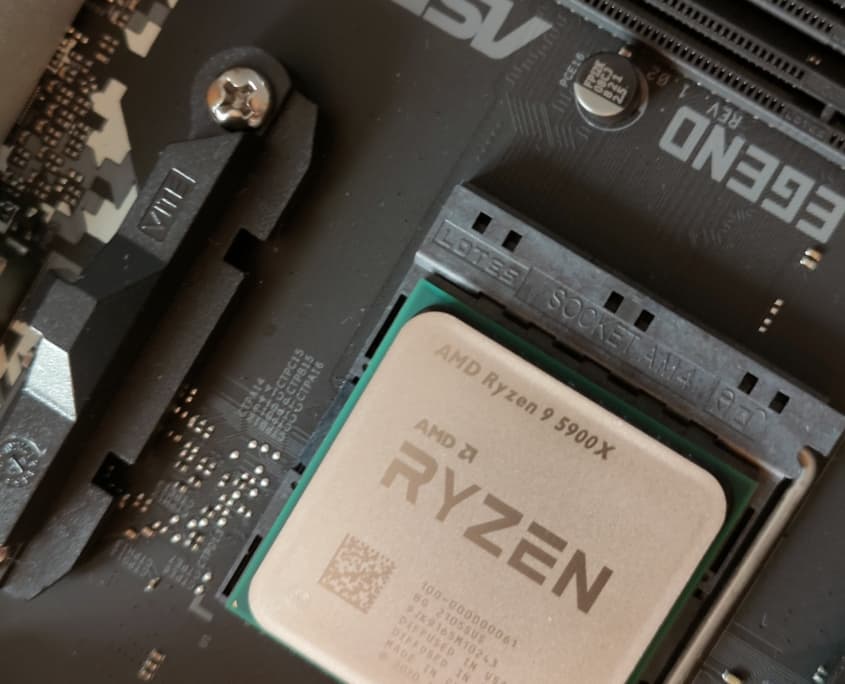
_CPU AMD Ryzen 9 5900x 12 cores 24 threads (for the power it develops, with low consumption and the fact that it «atomizes» the competition. No 5950X because the price difference does not justify the power difference for editing. I’ll link you to the excellent Cowcotland test
Motherboard Asrock X570 Steel Legend (for its design quality and the ports it offers. A heating defect, but only on the heavy overclocking that we photographers will never do…).
_Ram 128Gb DDR4 3600MHz Viper Patriot (4x32Gb): 64 would be enough for Adobe, but since I need to edit 4K footage, I’m going for the maximum possible. 3600MHz is available commercially but at insanely high prices and, above all, only achievable through overclocking. The Viper option is only available because of their excellent value for money.
GPU: AMD Sapphire Pulse RX5700 XT 8Gb (GPU that I have for already a year, a custom model of the standard AMD with better cooling and especially a 0Db mode in case of non-use. LR would tend to prefer Nvidia cards but for my part there is nothing to complain about).
_2x SSD NVME Gen 4 Western Digital Black 512GB (no need for more for the system, and for the LR cache it allows 200GB max. The rest is allocated to Photoshop/Premiere/After Effects in my case). These are relatively expensive drives but I would never risk using a budget model even with a backup.
_1x Samsung 870 Evo 1To SSD for the workflow.
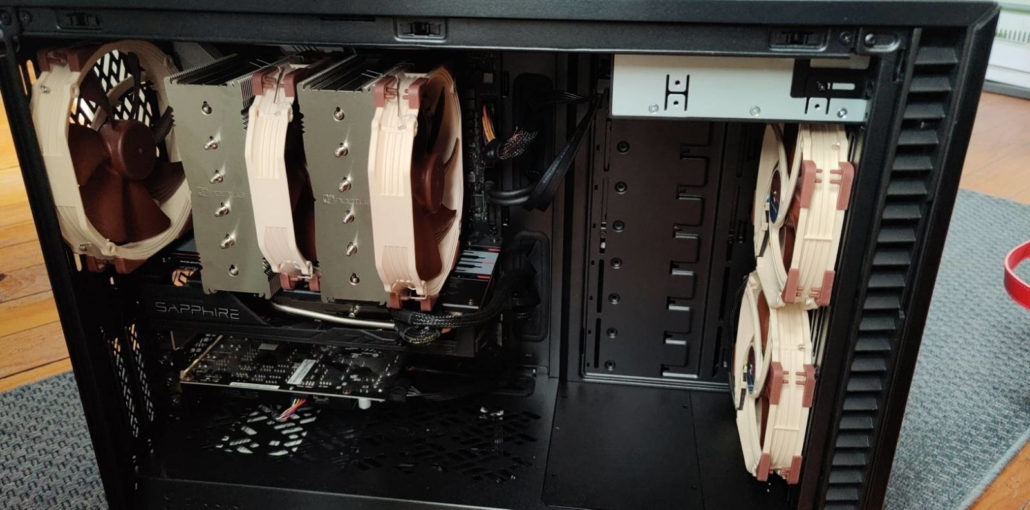
The whole thing is housed in a dedicated «airflow» tower for optimal cooling, managed on the CPU by a Noctua NHD15 fan cooler, and 3 Noctua A15 fans as well. The question arose of installing a watercooling system, but even a high-performance fan cooler achieves the same result with less noise.
I consider this configuration to be «atomic» and likely to cost me 10 years.
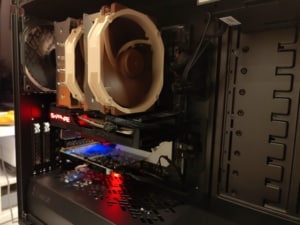
First tests carried out this morning:
_No latency under LR, instant loading of ALL tasks.
_Preview generation test 1/1 of 1000 photos at 6000x4000px: 8-9 minutes during which I was able to continue the editing of another reportage in a completely fluid manner.
_Test of exporting raw Jpeg from the same 1000 photos to a maximum size: 5 minutes. Same: possible use of the computer at the same time without any slowdown.
To go further, I recommend the excellent analysis by Puget System on the series of Ryzen 5 CPUs: this link to their test
A small photo of the machine once installation is complete:
Black and brown «the color of people with good taste who have good stuff» for connoisseurs 😉
I will now propose 3 «configurations»: small, medium and large budget.
I consider these «configurations» to be «financially affordable», and for this reason I have excluded the largest processors costing more than €1,000 each.
I freely drew inspiration from the configurations proposed by Puget System (https://www.pugetsystems.com/) To offer you 3 that I consider «credible». I won’t get into the eternal debates between AMD/Intel or Nvidia/AMD; I simply choose the components that to this day seem reliable, performant, and offer good value for money.
For a GOOD Lightroom PC:
| CPU | AMD Rysen 5800x 8-core
Or Intel Core i9 10900k (but expensive) |
| GPU | NVidia Geforce RTX 2060 SUPER |
| RAM | 32Gb DDR4 |
| DISCS | NVME Western Digital Black 500Go (system)
Samsung SSD 870 Evo 1To (workflow) |
For A BETTER Lightroom PC:
| CPU | AMD Ryzen 5800x 8-core |
| GPU | NVIDIA Geforce RTX 3070 |
| RAM | 64GB DDR4 |
| DISCS | NVME Western Digital Black 500Go (System)
Samsung SSD 870 Evo (Workflow) NVME Western Digital Black 500Go (Cache) |
And finally the configuration of BATARD:
| CPU | AMD Ryzen 5900x 12-core |
| GPU | NVIDIA Geforce RTX 3080 |
| RAM | 128GB DDR4 |
| DISCS | NVME Western Digital Black 500Go (System)
Samsung SSD 870 Evo 4To (workflow) NVME Western Digital Black 1TB (cache) |
The latter is of course recommended especially for experimenting with video and giant panoramas.
A little note about buying material goods:
Components are difficult to find at this time and could rise in price sharply in the coming weeks, as supply possibilities fluctuate. For example, my GPU has increased in price by 25% in 1 year… Or my Ryzen CPU was not available anywhere except on Amazon. Alternate (excellent German mattress site at a very reasonable price to avoid having to go through Amazon for people like me who are reluctant).
And thanks Moka for the help with the carton monitoring!

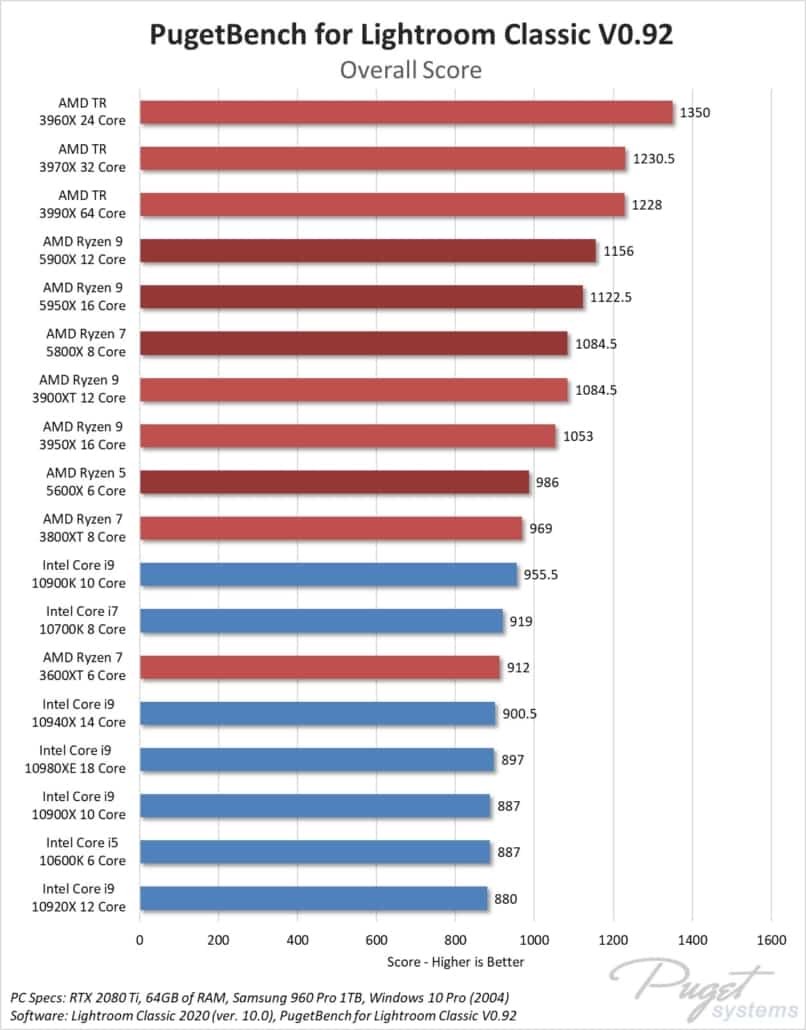
Here are the Puget System benchmarks of the different modern CPUs in Lightroom.
Exclude from our reasoning the unaffordable Ryzen TRP (Threadripper) models.
Note that the Ryzen 9 5900X performs surprisingly better than its big brother 5950…